
If your HP DeskJet 2700 printer is not connecting with your WiFi network, then try out the different fixes shared in this article.
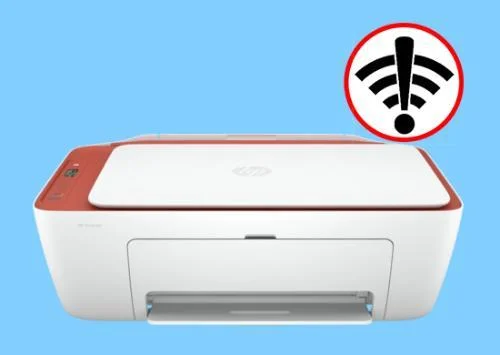
HP, one of the most well-known printer companies, has made it easy for millions of people around the world to print. It is a well-known brand name because of its wireless all-in-one printers, like the HP DeskJet 2700, which have great features that make printing easy. To shed some more light on the printer, it is a feature-packed multipurpose printing option. In order to get the best out of it, you should have the latest HP DeskJet 2700 Printer Driver installed on your computer.
However, many users have complained that their HP wireless printer is not connecting to their Wifi network. There are various reasons why this issue may occur, which include outdated drivers, incorrect printer settings, outdated firmware, incomplete setup, loose connections, etc. It is important to know the actual reason that is causing this connection issue with your printer. So that you can choose the best solutions from the different options shared in this article.
Different Ways to Fix The HP Printer Not Connecting to WiFi
Below we have shared some of the best ways that you can perform to resolve the WiFi connectivity issue with your HP printer.
Solution 1: Check The Connections
- Verify that your printer and computer are still communicating with each other.
- Verify the proper connection of the printer, computer, and cable or network.
- Power up your HP printer again. Turn it off and remove the power cable. Just hold on for a minute or two. The next step is to turn on the printer, insert the cord, and see whether it works.
Solution 2: Set Printer Settings To Default
The need to adjust the printer’s settings whenever it suits you is typical. Unfortunately, it is now causing all this confusion and won’t let you connect it to the WiFi network. Consequently, to restore your HP printer to factory settings, we have provided the following methods.
Step1: Hit Enter after typing control into the Run window, which is opened by pressing Windows + R.
Step2: Press the Devices and Printers button twice.
Step3: Mark your HP printer as the default printer by right-clicking on it. If asked, choose Yes.
Step4: Next to the HP printer, you’ll notice a checkmark. The default printer has been assigned to it.
Solution 3: Update Printer Drivers
Another major reason why your printer is not able to connect to the Wifi is its outdated or corrupted drivers. It is recommended by most experts that you should always keep your drivers up to date at all times. There are various ways to do it, you can download from the manufacturer’s website, use the Device Manager, or update your Windows OS. Here we are going to showcase some steps to update your printer driver using the Device Manager tool.
Step1: Open the Start menu’s context list by right-clicking on the Windows icon present on the taskbar.
Step2: Choose the Device Manager tool from the list of options.
Step3: On the Device Manager window you will see all the device drivers present on your computer. Click on the arrow icon next to the Print Queue section to expand it.
Step4: Double-click on the HP DeskJet 2700 printer driver to open its Properties window.
Step5: Go to the Drivers tab on the Properties window.
Step6: Click on the Update Driver button to proceed further.
Step7: A new window will open, select the “Search automatically for drivers” option to start the process.
Step8: Follow the instructions displayed on the wizard window to install the drivers successfully.
Step9: After finishing the process, restart your computer.
Solution 4: Run The Windows Troubleshooter
If none of the methods shared above helped you fix the problem, then it’s time to use the Troubleshooting tool. Follow the instructions shared below as they will guide you through the entire process.
Step1: Search for Troubleshoot Settings in the taskbar’s search bar.
Step2: This will open the Settings page, over there, go to the Troubleshoot tab section.
Step3: Now, click on the Additional troubleshooters link and it will redirect you to a different page.
Step4: Expand the Printer section by clicking on it.
Step5: Next, choose the Run the troubleshooter button to start the process.
Step6: Follow the steps on the setup wizard to fix the problem.
Step7: Once the troubleshooting is completed, reboot your computer and you are good to go.
Also rea: Easiest Ways To Transfer Files Online
Wrapping Up
We hope you find the information we’ve shared helpful and can fix the offline printer issue. If the issue still persists, check if your Wifi is working properly or contact your ISP. If everything looks fine, then contact your printer manufacturer’s Support team for professional assistance.



Leave feedback about this